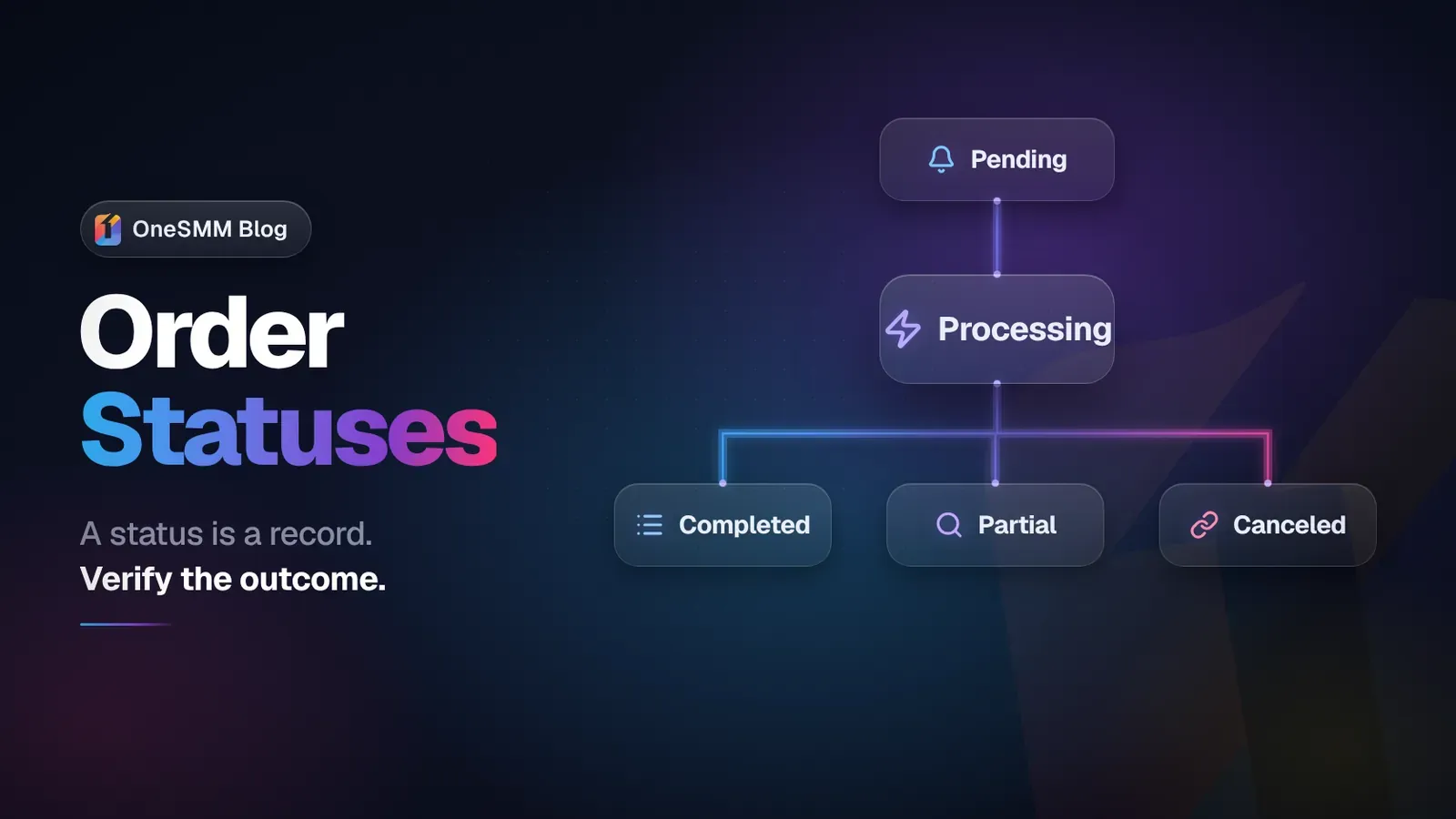
SMM Panel Order Statuses: Pending, Processing, Partial, Completed, and Canceled
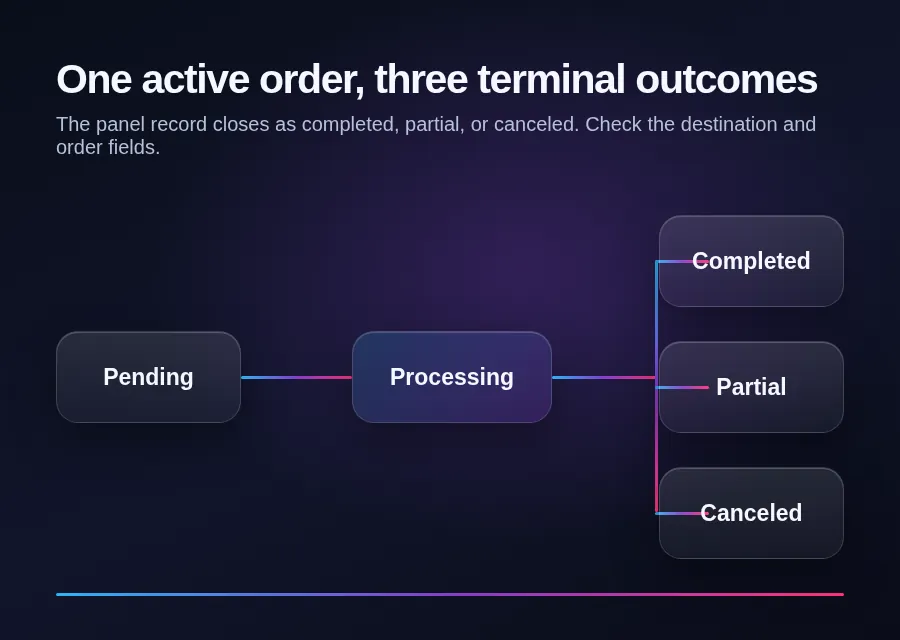
An SMM panel status tells you how the panel currently classifies an order. It does not, by itself, prove what is visible on the destination account. Pending usually means the order has been accepted but has not started. Processing or In progress means work is underway. Completed, Partial, and Canceled are terminal records, but you should still compare them with the submitted link and the visible result.
If a status looks wrong, do not place the same order again immediately. Save the order ID, check the destination, and compare the starting count and remaining quantity before you contact support.
What an order status can and cannot tell you
The status belongs to the order record inside the panel. It can tell you whether the order is waiting, active, or closed according to that system. It cannot tell you whether the link was correct, whether another campaign changed the same counter, or whether the visible total moved for an unrelated reason.
This distinction matters because many social counters are shared. If two view orders run on the same post, the final view count does not show which order supplied each view. The same problem appears with members, followers, reactions, and other services that affect one public total.
Common SMM panel order statuses
| Status | Usual meaning | What to check next |
|---|---|---|
| Pending | The panel has recorded the order, but processing has not started or has not been confirmed. | Confirm the link, quantity, service requirements, and whether a cancel action is available for that specific order. |
| Processing / In progress | The order is active or has been passed into the delivery workflow. | Check the destination and the service description before starting another order on the same link. |
| Completed | The panel has closed the order as delivered. | Compare the current destination with the saved starting point. If the result does not match the record, collect evidence before opening a ticket. |
| Partial | The order closed with some quantity left undelivered. Panels often expose a remaining quantity or adjusted charge in the order record. | Read the remains and charge fields. Do not assume every panel handles the balance adjustment in the same way. |
| Canceled / Cancelled | The order stopped without continuing to normal completion. | Check the final charge, remaining quantity, balance history, and the reason shown by the panel, if any. |
Labels are not perfectly standardized. One panel may use Processing, while another uses In progress. Some panels also expose states such as Error or Refilling. Read the service-specific explanation rather than forcing every provider into one vocabulary.
Read the order fields together
A status is more useful when you read it beside the rest of the record. OneSMM's public API reference shows status responses with a charge, starting count, status, remains, and currency. The dashboard may present those fields differently, but their jobs are distinct.
- Order ID identifies the panel record. Use this in a ticket instead of a payment reference or a screenshot with no context.
- Submitted link identifies the destination. Open it and confirm that it is still public, valid, and the same target you intended.
- Starting count is the baseline stored when the order began, when the service provides one. It is not always available or reliable for every service type.
- Remains records the quantity the panel says was not delivered. It is especially important for a Partial result.
- Charge is the amount recorded against the order. Compare it with the balance history when a Partial or Canceled order changes the final cost.
Do not compare one field in isolation. A Completed record with the wrong submitted link is a different problem from a Completed record where the destination changed and then dropped later.
What to do when the status seems stuck
- Open the exact order. Confirm its order ID, service, link, quantity, and current status.
- Check the destination. Make sure the post, profile, channel, group, or bot is still reachable under the service's stated conditions.
- Review the service listing. Look for the required link type, start-time guidance, refill terms, cancellation availability, and any service-specific notes.
- Look for another active order. Two orders on the same counter can make delivery hard to attribute and can interfere with support checks.
- Save a clean snapshot. Record the visible count and time. Remove private account information before sharing a screenshot.
- Use the panel's support path. Send the order ID and a short description of the mismatch. State what the dashboard shows and what you can observe on the destination.
Never send your social account password, email password, recovery code, wallet PIN, or API key in a support ticket. Those secrets are not needed to identify an SMM order.
Completed does not always mean the visible total will stay fixed
Completed means the panel closed the delivery record. It does not guarantee that a platform counter will never change afterward. Accounts can leave, posts can be removed, platforms can revise counts, and a customer can change the destination's privacy or access settings.
If the selected service includes a refill condition, read the actual service listing and order eligibility. A refill label is not permission to assume that every later drop is covered. The eligible period, minimum change, excluded actions, and support procedure can depend on the service.
Partial and canceled orders need a balance check
For a Partial order, start with the remains and final charge. For a Canceled order, check whether the panel shows a final charge and how the balance changed. The status name alone does not prove the exact adjustment.
Keep deposits and service orders separate in your records. A payment reference identifies money added to an account; an order ID identifies a service request. Mixing them slows down support because the panel must first work out which transaction you mean.
Avoid duplicate orders after a timeout
If the Submit button times out or the page fails to refresh, open the Orders page before trying again. A missing confirmation screen does not prove that the first request failed. Search by the target link, service, and approximate submission time.
Duplicate orders are risky because both may affect the same public count. If both start, you may not be able to attribute the visible change, and later support or refill checks become harder.
Extra checks for API and reseller workflows
Resellers should store both their customer-facing order ID and the supplier's order ID. Poll status at a controlled interval, map supplier labels explicitly, and keep terminal states separate from temporary ones. The Telegram SMM API testing guide explains why a successful order-creation response is not the same as completed delivery.
Your system should also preserve the raw supplier status, charge, starting count, and remains. If you translate every unknown state into Completed, customers receive a confident answer that your source never provided.
Keep the support message short and specific
A useful ticket can fit in a few lines: the order ID, the displayed status, the submitted link, what you expected, what you observed, and when you checked. Add a screenshot only when it clarifies the mismatch, and remove personal or payment information first.
That gives support enough context to inspect the order without asking for access to your social account. It also leaves you with a clean record if the status changes later.